LinkedIn video content gets 5× more engagement than static posts, according to LinkedIn's own data. But creating video content traditionally meant cameras, editing software, and hours of work. Not anymore.
Video carousels combine the high engagement of video with the structured storytelling of carousel posts — and with AI, you can create one in under two minutes. This guide walks through the complete process, from generation to posting.
What Are Video Carousels on LinkedIn?
A video carousel is a short video where your carousel slides transition automatically with motion effects, music, and camera movements. Unlike PDF carousels where viewers manually swipe through slides, video carousels play automatically in the LinkedIn feed.
Video Carousel vs PDF Carousel
| Feature | PDF Carousel | Video Carousel |
|---|---|---|
| Format | Multi-page PDF document | MP4 video file |
| Interaction | Manual swipe required | Auto-plays in feed |
| Dwell time | User controls pace | Controlled pacing with transitions |
| Music | Not supported | Background music optional |
| Transitions | None (static swipes) | Fade, slide, zoom, wipe effects |
| Best for | Detailed content, reference material | Attention-grabbing, storytelling |
Both formats have their place. Video carousels excel at capturing attention in the feed, while PDF carousels work better for detailed, save-worthy content.
Why Video Carousels Are Winning on LinkedIn in 2026
LinkedIn's algorithm has shifted heavily toward video content. Here's why video carousels are outperforming traditional formats:
1. Auto-play captures attention
Video carousels start playing automatically as users scroll. You don't need someone to click — the motion pulls their eye immediately.
2. Higher dwell time
The average viewer watches a video carousel 2–3× longer than they spend on a static post. LinkedIn's algorithm rewards content that keeps people on the platform longer.
3. Better mobile experience
Over 60% of LinkedIn traffic comes from mobile devices. Video carousels are designed for vertical mobile viewing (9:16 or 4:5 ratios), taking up more screen real estate than square PDF carousels.
4. Professional storytelling with motion
Subtle transitions, camera zooms, and pacing controls let you guide the viewer through your message — something static carousels can't do.
5. Easier to consume
Viewers don't have to click, swipe, or scroll. They just watch. That lower friction means more people actually see your full message.
Step-by-Step: Creating a LinkedIn Video Carousel with AI
Here's my exact workflow for creating video carousels. Total time: under 2 minutes.
Step 1: Open the AI Video Carousel Generator
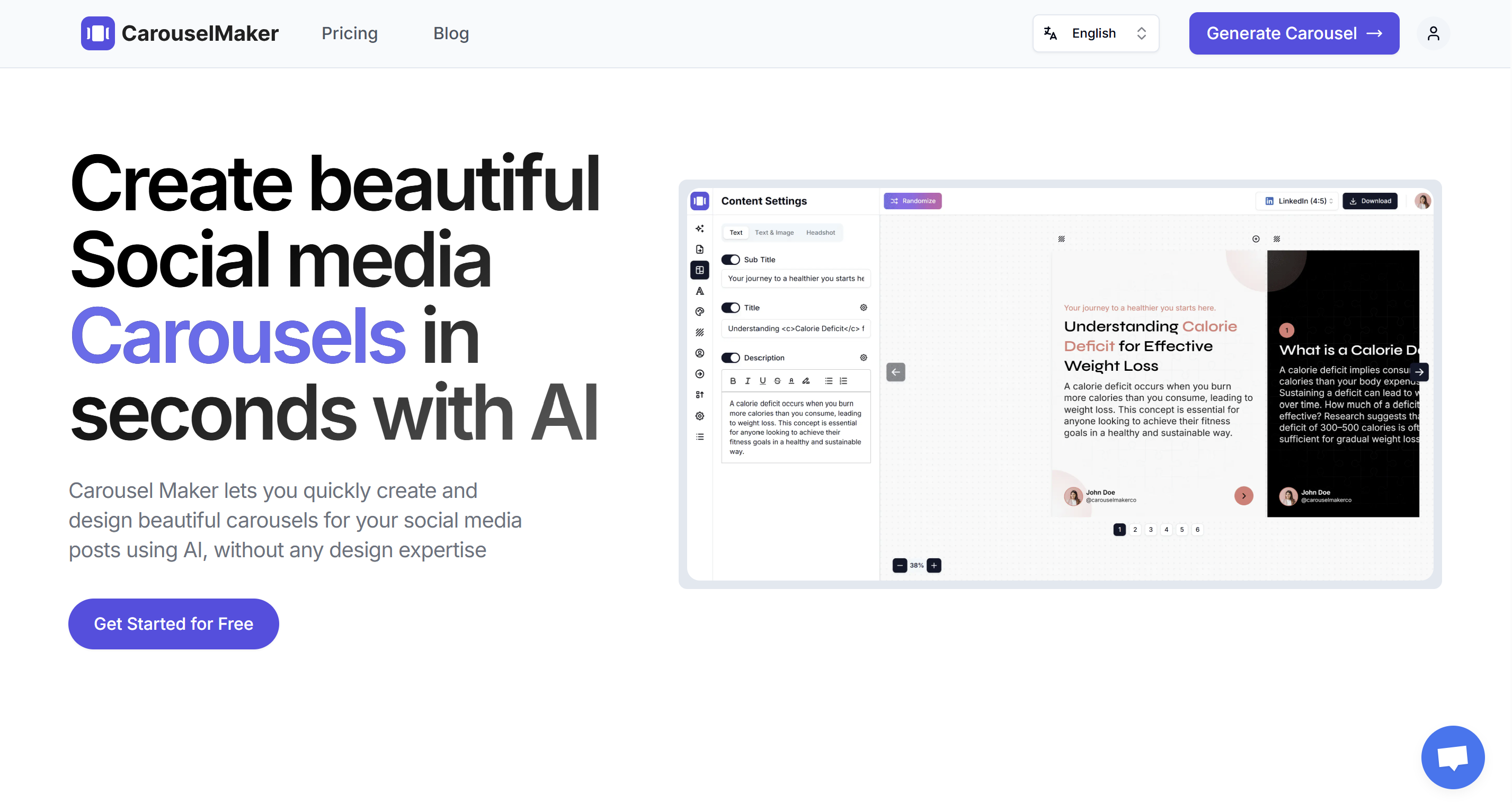
Go to the AI Video Carousel Generator. You'll see input options and a live preview canvas.
Step 2: Choose Your Input Method
CarouselMaker gives you three ways to create content:
Option A: Topic to Video Carousel
Type a topic like "5 LinkedIn profile mistakes to avoid" and the AI writes all slide content for you. Fastest option when you have an idea but no written content yet.
Option B: Text to Video Carousel
Paste existing text — a blog excerpt, newsletter section, or meeting notes — and the AI restructures it into slides. Great for repurposing content.
Option C: URL to Video Carousel
Drop in any URL and the tool extracts key points, then structures them into slides. Perfect for sharing articles or case studies.
Step 3: Configure Generation Settings
Set your preferences:
- Slide count: 8–10 slides (optimal for LinkedIn video carousels)
- Language: Choose from 21+ languages
- Input method: Topic, Text, or URL
Step 4: Generate Your Carousel
Click Generate. The AI creates:
- Hook slide — Grabs attention in the first 2 seconds
- Value slides — Core content, one idea per slide
- CTA slide — Tells viewers what to do next
You'll see a live preview of all slides in the editor canvas.
Step 5: Customize Design and Branding
Make the carousel yours:
Select template (Optional)
If you want to change the visual style, click the 3-dot menu (⋯) next to the Save button and select "Restart tour". This opens the template selection dialog where you can:
- Browse different template styles
- Choose your accent colors
- Pick a design direction that matches your brand
Customize colors and fonts
Use the left sidebar to adjust:
- Colors: Set brand colors and gradients
- Fonts: Choose heading and body fonts
- Profile photo: Add your photo (first/last slide)
- Text size: Minimum 24 px for mobile readability
Pro tip: Pick 2–3 colors and use them consistently across every video carousel you create. Over time, people recognize your content instantly.
Step 6: Select Video Format
Before exporting, choose your video format from the dropdown menu next to the "Download Zip" button:
Video format options:
- Video (9:16) — Vertical format for maximum mobile screen coverage
- Video (4:5) — Portrait format, good for mobile feed
- Video (1:1) — Square format, best for desktop LinkedIn feed
For LinkedIn, choose Video (1:1) for broad compatibility or Video (4:5) if optimizing for mobile.
Step 7: Configure Video Export Settings
Click the Download button (or selected video format) to open the "Export Video (MP4)" dialog. Configure these settings:
Main Settings:
- Seconds per slide: 3–5 seconds (slides with more text need more time)
- Resolution: 1080p (recommended for quality)
Motion Settings:
Choose how slides transition:
- Transition type: Slide left, Fade, Zoom, Wipe
- Fade — Smooth, professional
- Slide — Dynamic, good for step-by-step content
- Zoom — Energetic, draws attention
- Wipe — Clean, modern
- Camera motion: None, Zoom in, Zoom out, Pan
- Add subtle motion for visual interest (don't overdo it)
Audio Settings:
- Music track: Select background music from library or choose "No music"
- Volume: Keep at 20–30% if adding music (subtle for B2B content)
Pro tip: For professional LinkedIn content, use Fade transitions with no camera motion and subtle or no background music.
Step 7: Edit Content Slide by Slide
The AI draft is your starting point. Go through each slide and customize:
Hook slide (Slide 1)
The first 2 seconds determine if someone keeps watching. Make it count:
- Use a bold claim: "I went from 200 to 20K followers using this method"
- Ask a compelling question: "Is your LinkedIn profile costing you clients?"
- Lead with a number: "5 LinkedIn mistakes killing your reach"
Value slides (Slides 2–9)
Keep each slide to one idea and 30–50 words. Video moves fast — less text means better readability.
Bold the key phrase so the eye goes there first.
CTA slide (Last slide)
Be specific about what you want:
- "Follow me for daily LinkedIn tips"
- "Comment 'video' and I'll send you the template"
- "Save this for later"
Step 8: Preview on Your Phone
Most LinkedIn browsing happens on mobile. Before exporting, check:
- Text is readable without zooming
- Colors have enough contrast
- Nothing important gets cut off at edges
- Transitions feel smooth, not jarring
Step 9: Export as MP4
Once you're satisfied with your carousel:
- Select your video format from the dropdown next to "Download Zip": Video (1:1), Video (4:5), or Video (9:16)
- Click the Download button
- In the "Export Video (MP4)" dialog, configure:
- Seconds per slide: 3-5 seconds (more for text-heavy slides)
- Resolution: 1080p
- Transition type: Fade, Slide left, Zoom, or Wipe
- Camera motion: None, Zoom in, Zoom out, or Pan
- Music track: Choose from library or select "No music"
- Click "Export MP4"
- Wait for rendering (10-30 seconds)
- Download your MP4 file
File size will typically be 5–50 MB depending on length and quality. LinkedIn accepts videos up to 200 MB.
How to Post Video Carousels on LinkedIn
Once your video carousel is ready, you'll upload it as a native video post (not a document like PDF carousels).
Quick overview:
- Click "Start a post" and select the video icon
- Upload your MP4 file
- Add an engaging caption with 3-5 hashtags
- Post immediately or schedule for later
Unlike PDF carousels that go as documents, video carousels must be uploaded as videos so they auto-play in the feed and get LinkedIn's video algorithm boost.
For detailed step-by-step instructions including desktop/mobile workflows, caption strategies, best posting times, and engagement tactics, see our complete guide: How to Post Video Carousels on LinkedIn.
Writing Captions for Video Carousels
The caption complements your video and drives engagement. Here's the structure that works:
Caption Formula
1. Hook (1–2 lines)
Something bold that complements your video's first slide:
I analyzed 500 top-performing LinkedIn posts.
2. Context (2–3 lines)
Quick setup on why this matters:
Here's what I found: video carousels get 5× more engagement than static posts — but only if you do them right.
3. Value teaser (1 line)
Tell them what they'll get from watching:
Watch this 60-second video for the 5 patterns that work.
4. CTA (1 line)
Ask for a specific action:
Which one will you try first? Drop a comment 👇
5. Hashtags (3–5)
Finish with relevant tags:
#LinkedInTips #ContentStrategy #VideoMarketing
Example Caption
I spent 6 months testing video carousels on LinkedIn.
The results? 5× more engagement than my PDF carousels — but only when I followed these 5 rules.
Watch the full breakdown (takes 60 seconds) ↓
Have you tried video carousels yet? Let me know in the comments 👇
#LinkedInGrowth #VideoMarketing #ContentCreation #SocialMediaTips #LinkedInStrategy
Getting More Reach After You Post
Publishing is half the job. Here's what actually drives distribution:
Engage in the first hour
LinkedIn weighs early engagement heavily. When your video posts, reply to every comment within the first 60 minutes — ideally with a follow-up question to keep threads going.
Best posting times for LinkedIn video
According to Sprout Social's research:
- Tuesday–Thursday, 8–10 AM in your audience's timezone
- Lunchtime (12–1 PM) also works well
- Avoid weekends and evenings for B2B audiences
Pin your best video carousels
If a video carousel performs well, pin it to the top of your profile for 7 days. New profile visitors will see it first.
Repurpose across platforms
That same video carousel can go to:
- Instagram Reels — Upload as 9:16 vertical video
- TikTok — Post directly as video content
- Twitter/X — Upload as native video
One piece of content, multiple platforms, multiplied reach.
Video Carousel vs PDF Carousel: When to Use Which
Both formats have their place in your LinkedIn strategy:
| Use Video Carousel When... | Use PDF Carousel When... |
|---|---|
| You want maximum feed visibility | You want people to save and reference later |
| Content works better with motion and pacing | Content is detailed and text-heavy |
| You're targeting mobile users | You're sharing frameworks, checklists, or guides |
| You want to cross-post to Instagram/TikTok | You want LinkedIn's document SEO benefits |
| You're building personal brand recognition | You're driving traffic to a lead magnet |
My approach: publish 2–3 video carousels per week for reach, and 1 in-depth PDF carousel per week for authority and saves.
5 Video Carousel Formats That Work on LinkedIn
If you're staring at a blank screen, try one of these proven formats:
1. The "X Mistakes" Video
"7 LinkedIn mistakes killing your engagement."
One mistake per slide with the fix. End with a CTA asking which mistake they're guilty of.
2. The Quick Win Tutorial
"How I [got result] in [timeframe]."
3–5 actionable steps, each on its own slide. Works great with numbered slides and slide transitions.
3. Myth Busting Video
"5 LinkedIn myths holding you back."
Each slide debunks one myth. People love sharing myth-busting content.
4. Before/After Transformation
Show a transformation with side-by-side comparisons. Works great for profile makeovers, content rewrites, or process improvements.
5. Framework Breakdown
Take a known framework (AIDA, 80/20 rule, etc.) and break it down slide by slide with real examples.
More ideas: 30 AI carousel ideas for founders, coaches, and creators.
Common Questions About LinkedIn Video Carousels
What is a video carousel on LinkedIn?
A video carousel is a short MP4 video where your slides transition automatically with effects like fade, slide, or zoom. Unlike PDF carousels that require manual swiping, video carousels auto-play in the feed.
Do video carousels perform better than PDF carousels?
Generally yes, because LinkedIn's algorithm favors video content that increases dwell time. Video carousels auto-play, which means more people watch them. However, PDF carousels are still valuable for detailed, save-worthy content.
What video format should I use?
For LinkedIn, use 1:1 (square) for best compatibility, 4:5 (portrait) for mobile optimization, or 9:16 (vertical) for maximum mobile coverage. Export as MP4, keep under 200 MB, aim for 30–90 seconds.
Can I add music to LinkedIn video carousels?
Yes. Add background music during export in CarouselMaker.co. Keep volume low (20–30%) so it enhances rather than distracts. For B2B content, subtle or no music often works best.
How do I post a video carousel on LinkedIn?
Upload your MP4 as a native video post (not a document). Click "Start a post", select the video icon, upload your file, add caption and hashtags, then publish. The video auto-plays in the feed.
Conclusion
Video carousels are the highest-performing content format on LinkedIn right now. They combine the algorithm benefits of video with the structured storytelling of carousel posts — and with AI, you can create one in the time it used to take to write a single slide.
The workflow is simple: pick your content source (topic, text, or URL), generate with AI, customize your branding, configure video settings, and export as MP4. Then post it as native video on LinkedIn and watch the engagement roll in.
If you've been posting PDF carousels and want to test video, or if you've been intimidated by video content creation, this is your shortcut.
Create your first LinkedIn video carousel for free →