Instagram video content gets 22% more engagement than static image posts, according to Later's Instagram engagement study. Video carousels combine that engagement advantage with the storytelling power of multi-slide content — and now you can create them in under two minutes with AI.
This guide covers everything: generating video carousels with AI, exporting in the right formats, and posting to both Instagram Reels and Feed for maximum reach.
What Are Video Carousels on Instagram?
A video carousel is a short video where your carousel slides transition automatically with motion effects, music, and transitions. Unlike static image carousels where viewers swipe manually through up to 10 images, video carousels play as a single video file.
Video Carousel vs Image Carousel
| Feature | Image Carousel | Video Carousel |
|---|---|---|
| Format | Up to 10 static images | Single MP4 video file |
| Interaction | Manual swipe required | Auto-plays continuously |
| Where to post | Feed only | Reels, Feed, Stories |
| Music | Added via Instagram audio | Embedded or Instagram audio |
| Transitions | Instant swipe (no effects) | Fade, slide, zoom, wipe effects |
| Algorithm boost | Standard reach | Higher reach (video priority) |
| Best for | Visual variety, product showcases | Storytelling, educational content |
Both formats work, but Instagram's algorithm heavily favors video content — especially Reels — which means video carousels typically reach 3–5× more people.
Instagram Reels vs Feed: Where to Post Video Carousels
Instagram gives you two main places to post video carousels. Here's when to use each:
Post to Instagram Reels When...
- You want maximum reach — Reels get prioritized in the algorithm and appear in the Reels tab, Explore page, and followers' feeds
- You're targeting new audiences — Reels are Instagram's primary discovery engine
- You're using trending audio — Trending sounds boost Reels visibility significantly
- You want engagement — Reels consistently outperform Feed posts for likes, shares, and saves
Format: 9:16 vertical (1080×1920)
Post to Feed When...
- You're maintaining grid aesthetic — Feed posts appear on your profile grid
- You're targeting existing followers — Feed posts show primarily to people who already follow you
- You want longevity — Feed posts stay visible on your profile permanently
- You're cross-promoting — You can share a Reel to your Feed as well
Format: 4:5 portrait (1080×1350) or 1:1 square (1080×1080)
Pro tip: Post to Reels first for maximum reach, then share to your Feed as well. This gets you visibility in both places.
Why Video Carousels Are Dominating Instagram in 2026
Instagram's algorithm shift toward video has been dramatic. Here's why video carousels are outperforming static content:
1. Algorithm prioritizes video
Instagram explicitly prioritizes Reels and video content in the feed. Adam Mosseri (Head of Instagram) has stated repeatedly that video is the future of the platform.
2. Auto-play captures attention
Video carousels start playing automatically as users scroll. No click, no swipe required — the motion pulls the eye immediately.
3. Higher completion rates
A well-paced video carousel (15–30 seconds) gets rewatched multiple times, which Instagram's algorithm loves. Rewatches signal high-quality content and trigger broader distribution.
4. Built for mobile
Video carousels in 9:16 format take up the entire mobile screen — maximum visual impact and harder to scroll past.
5. Music drives discovery
Adding trending music to your video carousel significantly increases its chances of appearing on Explore pages and in Reels feeds of non-followers.
6. Better storytelling control
Unlike image carousels where viewers control the pace, video carousels let you control timing, transitions, and emotional pacing through the story.
Step-by-Step: Creating an Instagram Video Carousel with AI
Here's my complete workflow for creating video carousels optimized for Instagram. Total time: under 2 minutes.
Step 1: Open the AI Video Carousel Generator
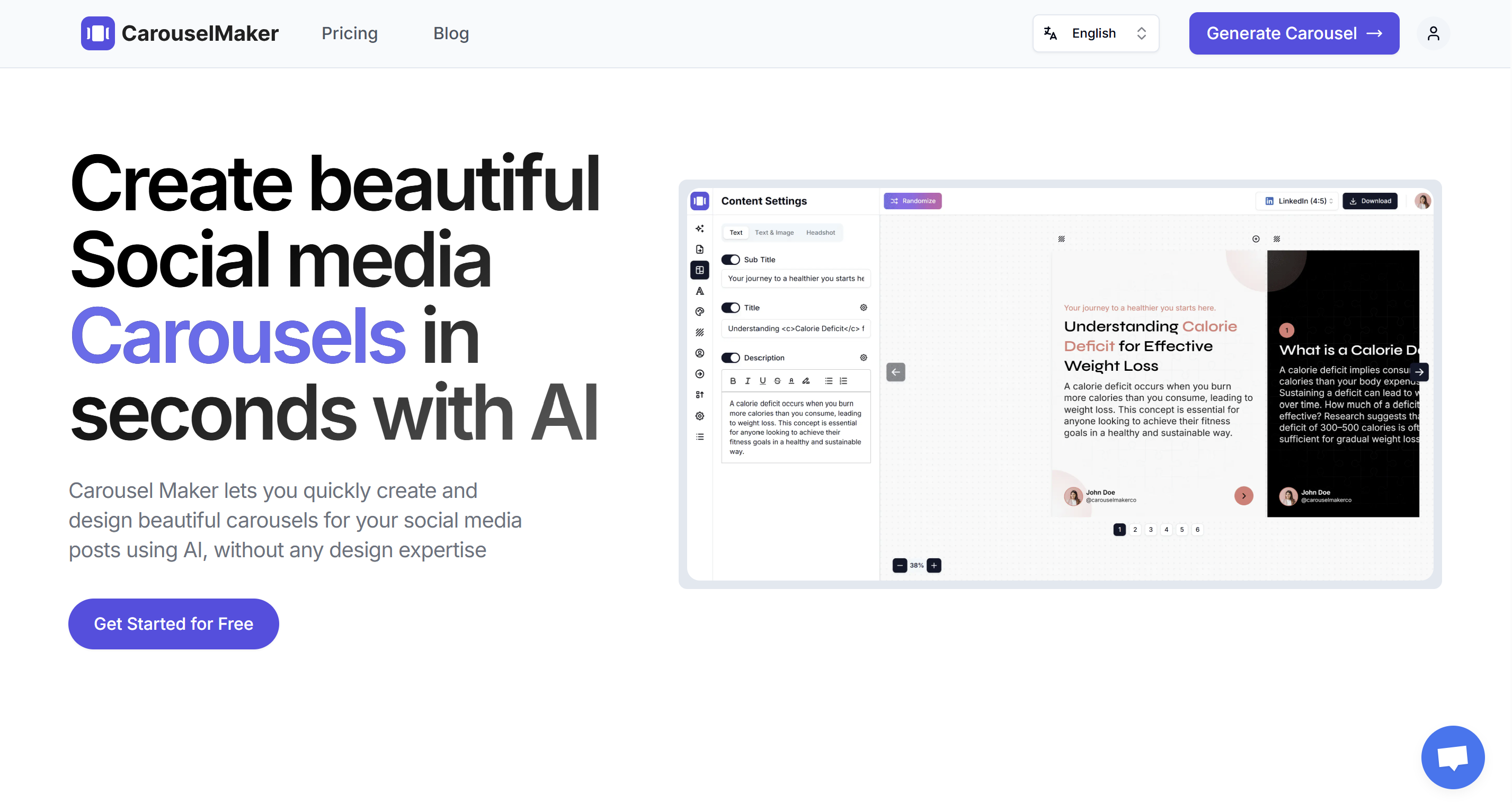
Go to the AI Video Carousel Generator. You'll see input options and a live preview.
Step 2: Choose Your Content Input Method
Pick the method that matches your workflow:
Option A: Topic to Video Carousel
Type a topic like "5 Instagram growth hacks for 2026" and the AI generates all slide content. Perfect when you have an idea but haven't written content yet.
Option B: Text to Video Carousel
Paste existing text — a caption, newsletter excerpt, or notes — and the AI structures it into slides. Great for repurposing content.
Option C: URL to Video Carousel
Drop in a blog post URL and the tool extracts key points, then creates slides. Ideal for turning long-form content into snackable Instagram videos.
Step 3: Select Video Type and Slide Count
Choose Video as your carousel type.
Set slide count: 6–10 slides work best for Instagram. This creates a 15–45 second video depending on timing — the sweet spot for Reels engagement.
Step 4: Generate Your Carousel
Click Generate. The AI creates:
- Hook slide — Grabs attention in the first 2 seconds (critical on Instagram)
- Value slides — Core content, one clear idea per slide
- CTA slide — Tells viewers what to do next (follow, save, share, comment)
Step 5: Customize Design for Instagram Aesthetic
Instagram is a visual platform. Your design matters:
Select template (Optional)
Click the 3-dot menu (⋯) next to Save button and select "Restart tour" to browse different template styles and choose one that fits Instagram's bold, visual aesthetic.
Colors and branding
Use the left sidebar to customize:
- Bold, saturated colors that stand out in busy feeds
- High contrast — Dark text on light backgrounds or vice versa
- Cohesive palette — 2-3 colors max
- Logo or profile photo — Subtle placement (first/last slide)
Fonts and text
- Headings: Bold sans-serifs like Poppins, Montserrat, DM Sans
- Body text: Minimum 26 px for Instagram mobile viewing
- Minimal text: 20-40 words per slide max
- Avoid decorative fonts
Step 6: Select Video Format for Instagram
Choose your format from the dropdown next to "Download Zip":
- Video (9:16) — For Reels and Stories (maximum reach)
- Video (4:5) — For Feed posts (good mobile coverage)
- Video (1:1) — For square grid aesthetic
Recommended: Use Video (9:16) for Reels to maximize reach and screen real estate.
Step 7: Configure Video Export Settings
Click the Download button to open the "Export Video (MP4)" dialog:
Main Settings:
- Seconds per slide: 3-4 seconds (fast-paced for Instagram)
- Resolution: 1080p
Motion:
- Transition type: Slide, Zoom, Wipe (dynamic transitions for Instagram)
- Camera motion: Subtle zoom or pan for visual interest
Audio:
- Option 1: Skip music during export, add trending Instagram audio when posting (recommended for reach)
- Option 2: Add music from library if you want specific audio baked in
Pro tip: For maximum Reels reach, export without music and add trending sounds when uploading to Instagram.
Step 7: Edit Content for Instagram Audience
Instagram has a different tone than LinkedIn. Edit your slides to match:
Hook slide (Slide 1)
You have 1–2 seconds to stop the scroll. Make it count:
- Bold claim: "I grew from 0 to 100K followers in 6 months"
- Question: "Are you making this Instagram growth mistake?"
- Number promise: "5 Reels hacks the algorithm loves"
- Curiosity gap: "This one trick changed everything"
Value slides (Slides 2–9)
- One idea per slide — don't cram information
- 20–40 words max — Instagram users scroll fast
- Bold the key takeaway — helps with quick scanning
- Use emojis sparingly — 1–2 per slide can add visual interest
CTA slide (Last slide)
Instagram CTAs that work:
- "Follow for daily Instagram tips"
- "Save this for later"
- "Share with a friend who needs this"
- "Drop a 🔥 if this helped"
Step 8: Preview on Mobile
Instagram is mobile-first. Before exporting, check:
- Text is readable at small size (test on your phone screen)
- Colors pop and have strong contrast
- Nothing important is cut off at top/bottom
- Transitions feel smooth and natural
Step 9: Export as MP4
Hit Download and select MP4 video. Choose your format:
- 9:16 if posting to Reels
- 4:5 if posting to Feed
The tool renders your video with all transitions and effects. File size will typically be 5–30 MB.
How to Post Video Carousels on Instagram
Once your video carousel is ready, you'll upload it to Instagram Reels for maximum reach.
Quick overview:
- Tap the + button and select "Reel"
- Upload your 9:16 MP4 file
- Add trending audio (critical for reach)
- Write caption with 5-10 hashtags
- Toggle "Also share to Feed" for double visibility
Key tip: Always add trending audio when posting to Reels. This single step can 5-10× your reach by boosting For You Page visibility.
For detailed step-by-step instructions including trending audio strategy, cover image selection, caption formulas, hashtag tips, and engagement tactics, see our complete guide: How to Post Video Carousels on Instagram.
Writing Captions for Instagram Video Carousels
Instagram captions drive engagement. Here's the formula:
Caption Structure
1. Hook (First Line)
This shows in the feed preview before "...more". Make it count:
I tested 50 different Reels strategies. Only 3 actually worked.
2. Value promise (2–3 lines)
Tell them what they'll get from watching:
Here are the 3 tactics that took me from 500 views to 500K views per Reel (save this for later 👇)
3. Engagement question (1 line)
Ask something specific:
Which of these have you tried? Drop a comment and let me know!
4. Hashtags (5–10)
Instagram's algorithm uses these for discovery:
#instagramtips #reelstips #contentcreator #instagramgrowth #socialmediatips #reelshacks #instagramstrategy #creatoreconomy
Example Caption for Video Carousel
I spent 6 months analyzing viral Reels. Here's what actually works 👇
These 5 video carousel strategies helped me go from 2K to 100K followers in under a year.
Watch until the end for the tactic that changed everything (hint: it's not what you think)
Which one will you try first? Comment below! 💬
#instagramgrowth #reelstips #contentcreator #instagramstrategy #socialmediatips #growyourinstagram #instagramreels #viralreels #contentmarketing #creatoreconomy
Caption Best Practices
- Front-load the hook — First 1–2 lines show in preview
- Use line breaks — Makes captions easier to read (hit return 2–3 times between sections)
- Include a CTA — Ask for follows, saves, shares, or comments
- Add hashtags at the end — Don't clutter the main caption
- Tag relevant accounts — Can increase reach if they engage
Getting More Reach After You Post
Publishing is only the start. Here's what drives distribution:
Engage immediately after posting
Instagram weighs early engagement heavily. In the first 30–60 minutes after posting:
- Reply to every comment
- Ask follow-up questions to keep threads going
- Engage with other accounts' content (Instagram likes reciprocity)
Best posting times for Instagram
According to Hootsuite's research:
- Monday–Friday, 11 AM – 2 PM (lunch break scrolling)
- Wednesday at 11 AM and Friday at 10–11 AM perform best
- Evenings 7–9 PM (post-work scrolling)
Test different times and check Instagram Insights to see when your specific audience is most active.
Use trending audio strategically
For Reels, using trending audio can 10× your reach. Find trending sounds:
- Browse the Reels feed and save audio from high-performing videos
- Check the ⬆️ arrow icon next to audio name (indicates trending)
- Use audio within 1–3 days of it trending (timing matters)
Encourage saves and shares
Instagram's algorithm prioritizes content that gets saved and shared (these signal high value). In your CTA:
- "Save this for later"
- "Share with a friend who needs this"
- "Send this to someone who..."
Cross-post to other platforms
Repurpose your video carousel:
- TikTok — Upload the same 9:16 video
- LinkedIn — Upload as native video (if professional content)
- YouTube Shorts — Post as Short (9:16 format)
- Pinterest — Upload as Idea Pin (9:16 video)
One video carousel, multiple platforms, multiplied reach.
Video Carousel Best Practices for Instagram
After creating hundreds of video carousels, here's what works:
Content
- Hook in 1–2 seconds — Instagram users scroll fast; grab attention immediately
- One idea per slide — Don't cram; keep it simple
- End with strong CTA — Tell viewers exactly what to do next
- Use text overlays — Many people watch on mute; text makes content accessible
Design
- High contrast — Bold colors and clear text stand out in busy feeds
- Minimal text — 20–40 words per slide max
- Consistent branding — Use same colors/fonts so people recognize your content
- Mobile-first design — 70%+ of Instagram usage is mobile; design for small screens
Video Settings
- Keep it short — 15–30 seconds gets more rewatches
- Fast-paced transitions — 3–4 seconds per slide
- Use motion — Subtle zooms/pans keep visual interest
- Add trending audio — Especially for Reels
Strategy
- Post consistently — 3–5 Reels per week for growth
- Test different formats — See what resonates with your audience
- Analyze performance — Check Instagram Insights; double down on what works
- Engage authentically — Reply to comments, engage with your community
5 Video Carousel Formats That Work on Instagram
If you're not sure what to create, start with one of these proven formats:
1. Quick Tips Carousel
"5 Instagram growth hacks you're not using"
One tip per slide, fast-paced, actionable. These get saved and shared frequently.
2. Before/After Transformation
Show a transformation story with visuals. Works great for fitness, design, content examples, or skill development.
3. Myth Busting Video
"5 Instagram myths keeping you stuck at 1K followers"
Debunk common misconceptions in your niche. People love sharing myth-busting content.
4. Step-by-Step Tutorial
"How to create viral Reels in 5 steps"
Walk through a process slide by slide. Educational content performs well on Instagram.
5. Carousel Story
Tell a personal story across 6–10 slides. Use images + text overlays. Story-driven content drives emotional engagement.
More ideas: 20 viral Instagram carousel ideas with AI.
Common Questions About Instagram Video Carousels
What is a video carousel on Instagram?
A video carousel is a short video where multiple slides transition automatically with effects and music. Unlike image carousels (up to 10 swipeable photos), video carousels play as a single video file, making them ideal for Reels or Feed posts.
Should I post video carousels to Reels or Feed?
Post to Reels for maximum reach — Instagram's algorithm heavily prioritizes Reels. For best results, post as a Reel with "Also share to Feed" enabled to get visibility in both places.
What video format works best for Instagram?
Use 9:16 (1080×1920) for Reels — it takes up the full mobile screen. Use 4:5 (1080×1350) for Feed posts if you prefer a portrait format that fits grid aesthetic. Both work well.
Can I add trending music to my video carousel?
Yes. Either add music during export in CarouselMaker.co, or add Instagram trending audio when posting to Reels (recommended for better reach). Trending sounds significantly boost Reels visibility.
How long should an Instagram video carousel be?
For Reels, aim for 15–30 seconds — shorter videos get rewatched more, which helps algorithm performance. For Feed posts, 30–60 seconds works well. Keep slides moving quickly; 3–4 seconds per slide is ideal.
Conclusion
Video carousels are the highest-performing content format on Instagram right now. They combine the algorithm advantages of video (especially Reels) with the structured storytelling of carousel posts — and with AI, you can create one in under two minutes.
The process is straightforward: choose your content source (topic, text, or URL), generate with AI, customize for Instagram's visual aesthetic, configure video settings (9:16 for Reels, 4:5 for Feed), and export as MP4. Then post to Reels with trending audio and watch your reach multiply.
If you've been posting static image carousels and want to test video, or if video content has felt too complicated, this is your shortcut.
Create your first Instagram video carousel for free →