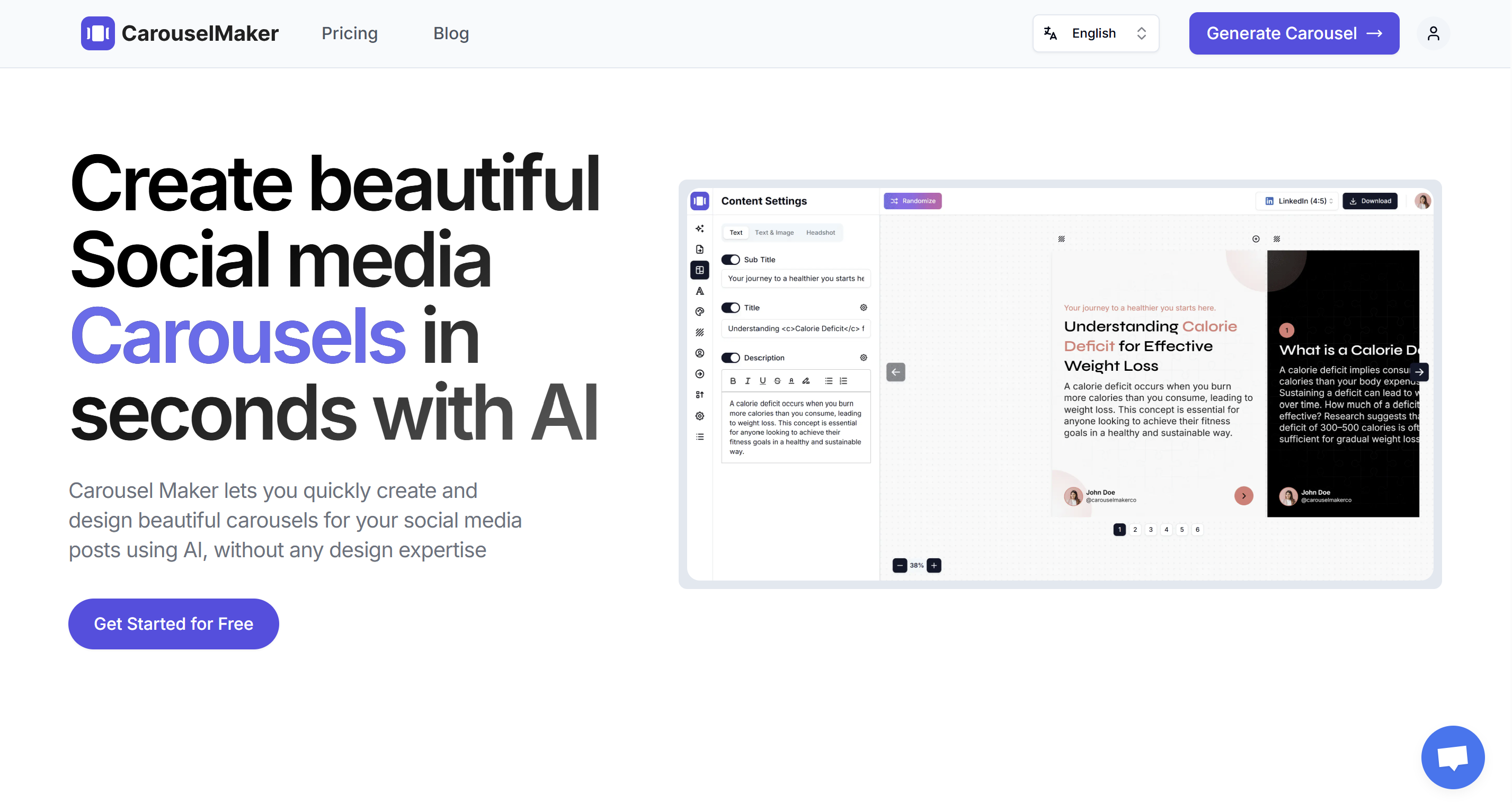
LinkedIn carousel posts consistently pull 2–3× more engagement than standard text or image posts. The catch? Making them by hand is slow. Writing slide copy, picking layouts, tweaking colors, exporting the right file format — a single carousel can easily burn two hours.
I know because I used to do it that way. Now I use AI and the whole thing takes about 90 seconds. This guide walks through my exact process, step by step, from opening the tool to posting on LinkedIn.
Never used an AI carousel tool before? Our complete guide to AI carousels covers the basics.
What You Need Before You Start
- A free CarouselMaker.co account (no credit card)
- A topic, some text, or a URL you want to turn into slides
- A LinkedIn account
That's it. No Photoshop, no design templates to download.
Step 1: Open the AI Carousel Generator
Go to the AI Carousel Generator. You'll land on the main editor with input fields on one side and a live preview on the other. Bookmark it if you plan to make carousels regularly.
Step 2: Choose Your Input Method
CarouselMaker gives you three ways to feed content in. Pick whichever matches your situation:
Option A: Topic to Carousel
Type something like "5 LinkedIn mistakes that kill your engagement" and the AI writes all the slide content for you. This is the fastest path when you have an idea but haven't written anything yet.
Option B: Text to Carousel
Paste existing text — a blog paragraph, a Twitter/X thread, meeting notes, whatever — and the AI restructures it into slides. I use this a lot for repurposing newsletter content.
Option C: URL to Carousel
Drop in a URL and CarouselMaker pulls out the key points, then turns them into slides. Handy for sharing articles or case studies in carousel format without copy-pasting.
Step 3: Set Your Slide Count
Choose how many slides you want. The AI distributes your content across them automatically.
For LinkedIn, 10 slides is a reliable starting point — enough depth to be useful, short enough that most people swipe to the end. If you're making something quick and punchy, 6–8 works. I rarely go past 12.
Step 4: Generate Your Carousel
Hit Generate and give it a few seconds. The AI produces three types of slides:
- A hook slide — The opening slide designed to stop the scroll. Usually a bold headline or question.
- Value slides — The core of your carousel. Each one delivers a single point, tip, or step.
- A CTA slide — The closer that tells viewers what to do next (follow, comment, visit your profile).
You'll see a live preview of all slides in the editor, ready for tweaking.
Step 5: Customize the Design
This is where you make the carousel yours instead of something that looks like everyone else's.
Colors and gradients
Set your brand colors in the color settings. Solid backgrounds, gradients, accent colors for headings — whatever matches your brand. The one thing I'd strongly suggest: pick 2–3 colors and use them on every carousel you make. Over time, people start recognizing your posts before they even read a word.
Fonts
Pick a heading font and a body font. Clean sans-serifs (Inter, DM Sans, or whatever your brand uses) tend to work best on LinkedIn since most people are reading on their phones.
Profile photo and name
Adding your photo and name to the slides makes the carousel feel personal. Some people put it on every slide, I usually just put it on the first and last.
Layout options
Switch between different slide layouts:
- Text only — Clean and focused; great for tips and frameworks
- Text + image — Works well for case studies or product showcases
- Numbered steps — Ideal for how-to content
For the full customization walkthrough, see our guide on how to customize a carousel generated using AI CarouselMaker.
Step 6: Edit the Content Slide by Slide
The AI draft is a starting point, not the finished product. This editing step is what separates a carousel people scroll past from one they save. Go through each slide and read it out loud.
The hook slide (Slide 1)
Ask yourself honestly: would I stop scrolling for this? If the answer is "probably not," rewrite it. Vague hooks like "Tips for success" get ignored. Specific ones like "I went from 200 to 20K followers using this framework" don't.
Value slides (Slides 2–9)
Keep each slide to one idea and 30–60 words. If you're making two points on one slide, split it. Bold the key phrase so the eye goes there first. Bullets beat paragraphs.
The CTA slide (Last slide)
Be specific about what you want people to do. "Follow me for daily LinkedIn tips" or "Comment 'carousel' and I'll send you the template" work. "Thanks for reading!" doesn't.
Step 7: Check It on Your Phone
Most LinkedIn browsing happens on mobile, so preview your carousel on your phone before exporting. Things to watch for:
- Text should be readable without zooming (at least 24 px equivalent)
- Nothing important getting cut off near the edges
- Colors and contrast look good on a small screen
For detailed specs, see our LinkedIn carousel size and dimensions guide. CarouselMaker handles the correct export dimensions automatically, but a quick phone check is always worth it.
Step 8: Export as PDF
LinkedIn only accepts carousels as PDF uploads. Hit the download button in CarouselMaker and select PDF. Each page of the PDF becomes one swipeable slide once you upload it.
Step 9: Publish on LinkedIn
Here's the actual upload process:
Desktop
- Click "Start a post" in your LinkedIn feed
- Click the "Document" icon (might be under "More")
- Upload your PDF
- Add a document title — this shows in the top-left corner of your carousel
- Write your caption
- Post
Mobile
- Tap the "+" button
- Select "Add a document"
- Upload the PDF from your files
- Add title and caption
- Post
More details including scheduling options: how to publish carousel posts on LinkedIn.
Step 10: Write a Caption That Drives Engagement
The carousel is your content. The caption is what gets people to start swiping. Here's the structure I use:
- Opening hook (1–2 lines): Something bold that complements the first slide — a stat, a question, a claim
- Context (2–3 lines): Quick setup on why this matters
- Teaser (1–2 lines): What they'll get by swiping through
- CTA (1 line): Ask for a specific action — like, comment, share, or save
Example
I spent 6 months analyzing the top-performing LinkedIn carousels.
Here are the 7 patterns I found (and how to use them):
↓ Swipe through the carousel for the full breakdown ↓
Which one will you try first? Drop a comment 👇
Finish with 3–5 relevant hashtags. LinkedIn surfaces your post to people who follow those tags.
For more on writing captions, see our tips for engaging LinkedIn posts, or try the free AI caption generator if you want a starting draft.
Getting More Reach After You Post
Publishing is only half the job. Here's what actually moves the needle on distribution.
Engage in the first hour
LinkedIn's algorithm weighs early engagement heavily. When your post goes live, stick around and reply to every comment — ideally with a follow-up question to keep the thread going. That first 60 minutes matters more than anything you do after.
Post timing
Per Sprout Social's research, Tuesday through Thursday, 8–10 AM in your audience's timezone tends to get the most eyes. Lunchtime (12–1 PM) also works. Weekends and late evenings are dead zones for most B2B audiences.
Repurpose what you've already made
That LinkedIn PDF can go further than LinkedIn:
- Instagram — Export as individual images and upload as a multi-image post. See our guide on posting carousels on Instagram.
- TikTok — Upload images in TikTok's photo mode
- Twitter/X — Share as a thread or image collage
Don't post once and disappear
The people who grow fastest on LinkedIn are publishing 2–3 carousels a week. That sounds like a lot, but with AI doing the heavy lifting, it's very doable. Plan topics in advance — our carousel idea generator can help when you're stuck.
5 Carousel Formats You Can Steal
If you're staring at a blank screen, try one of these. They work with pretty much any topic.
1. The "X mistakes" post — "7 LinkedIn mistakes killing your growth." One mistake per slide, with the fix. CTA: ask which one they're guilty of.
2. The step-by-step tutorial — "How I [result] in [timeframe]." Walk through each step with enough detail to be actionable.
3. Myth vs. reality — "5 LinkedIn myths holding you back." Each slide debunks one myth. People love sharing these.
4. Before/after — Show a transformation with side-by-side comparisons. Works great for profile makeovers, content rewrites, or process improvements.
5. The framework breakdown — Take a known framework (AIDA, the 80/20 rule, whatever fits your niche) and break it down slide by slide.
More ideas in our winning carousel post ideas roundup.
Common Questions
How do I create a carousel post on LinkedIn?
Upload a multi-page PDF as a "document" post. Each page becomes a swipeable slide. The simplest way to make that PDF is with CarouselMaker.co — it generates content, applies design, and exports the file in one go.
Can I make a LinkedIn carousel for free?
Yes. CarouselMaker has a free plan that covers generation, customization, and PDF download. No credit card, no trial that expires.
What's the best AI tool for LinkedIn carousels?
I'm biased, but CarouselMaker.co is built specifically for this. It supports topic, text, and URL inputs with full brand customization. Canva is solid for manual design if you prefer that route.
How long does it take?
About 90 seconds to two minutes from start to download. The AI generation is near-instant — you spend most of the time reviewing and editing.
Will LinkedIn penalize me for using AI?
No. LinkedIn's algorithm cares about whether people engage with your content, not how you made it. That said, don't publish raw AI output. Add your real experiences and edit for your voice — that's what makes people want to engage.
Conclusion
The whole process — from idea to published LinkedIn carousel — takes a couple of minutes once you get the hang of it. The AI handles the parts that used to slow me down (writing slide copy, getting the layout right, exporting the correct format), and I focus on making sure the content actually sounds like me.
If you've been meaning to try carousels but kept putting it off because they seemed like too much work, this is the shortcut. Give it a shot with a topic you know well and see what comes out.
Create your first carousel for free →